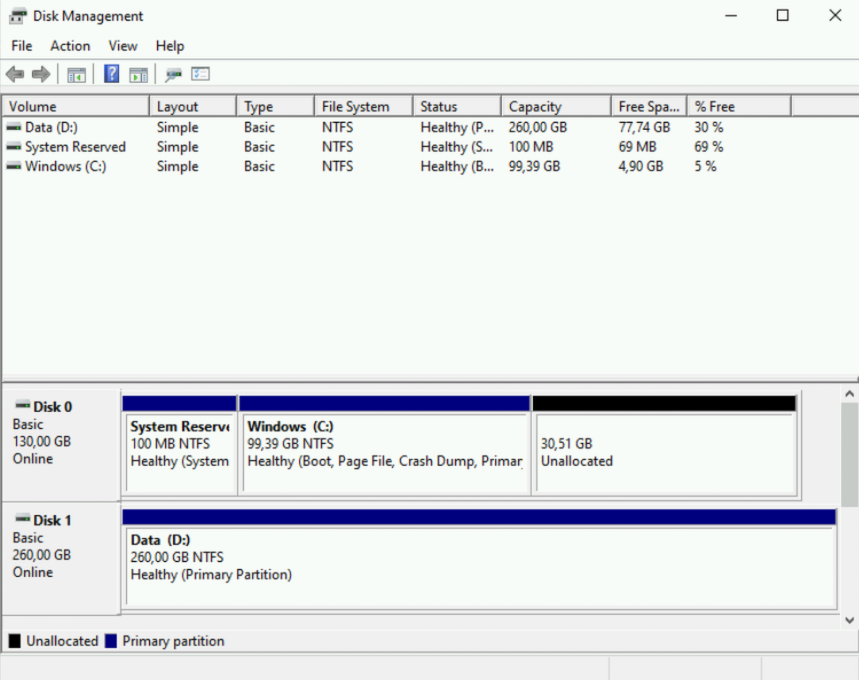
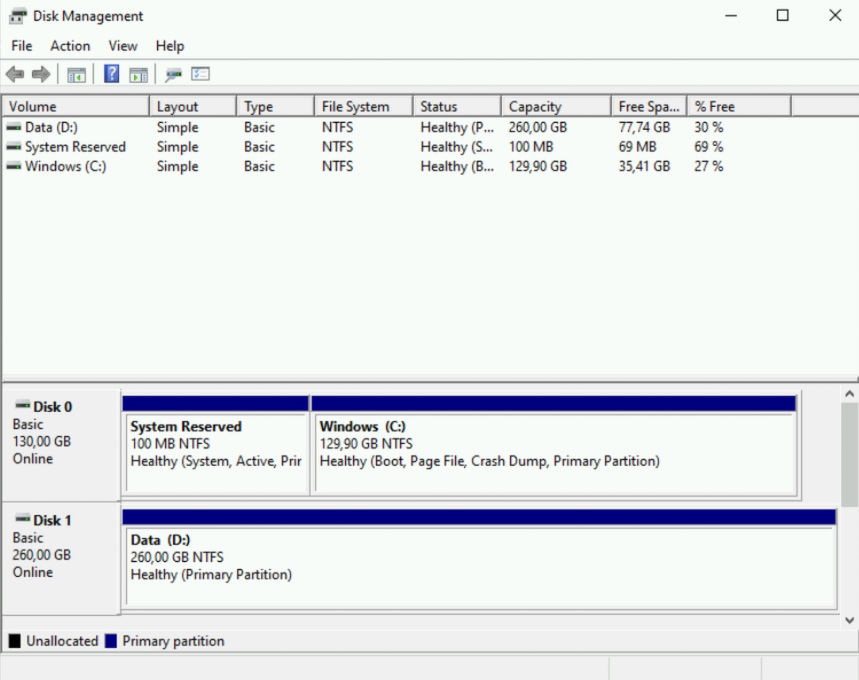
Extending disks is a great way to extend hard drive space on virtual machines where you usually don’t want to over-allocate your precious disk space, even more true with today’s AI-inflated prices on mechanical and SSD hard drives.
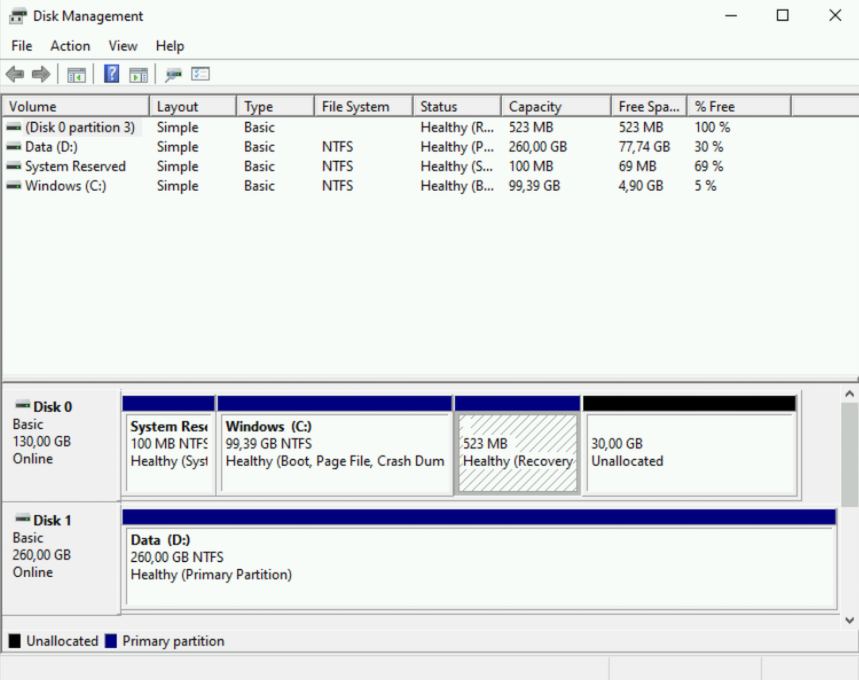
If you extended your Disk in a hypervisor and try to use Disk Management to extend the disk and happen to have a Recovery Partition (pic below) you will discover that you can’t extend your partition. You can’t extend your partition when unallocated disk space and your partition have a Recovery Partition squeezed in – in the “middle” (pic below).
If you try to remove the Recovery Partition in Disk Management you will soon discover that you can’t.
Use DISKPART
Disk Management (diskmgmt.msc) is a good program but we can’t do everything there. The tool to use is DISKPART, a program that’s been with us since Windows 2000.
In my guide below I do everything in diskpart but after the deletion of the recovery partition (step #7) you could exit diskpart and extend the partition in Disk Management.
Commands I use are highlighted and my comments are behind #number.
#1. Run Command Prompt (cmd) as administrator
#2. Run DISKPART from cmd - type diskpart and press enter

Microsoft Windows [Version 10.0.20348.5139]
(c) Microsoft Corporation. All rights reserved.

C:\Windows\system32>diskpart

Microsoft DiskPart version 10.0.20348.1

Copyright (C) Microsoft Corporation.
On computer: GILLTEST

#3. In DISKPART type "list disk" to show all disks
DISKPART> list disk

  Disk ###  Status         Size     Free     Dyn  Gpt
  --------  -------------  -------  -------  ---  ---
  Disk 0    Online          130 GB    30 GB
  Disk 1    Online          260 GB  1024 KB

#4. Select your disk with "select disk number", in this case "select disk 0"
DISKPART> select disk 0

Disk 0 is now the selected disk.

#5. List partitions with "list part"
DISKPART> list part

  Partition ###  Type              Size     Offset
  -------------  ----------------  -------  -------
  Partition 1    Primary            100 MB  1024 KB
  Partition 2    Primary             99 GB   101 MB
  Partition 3    Recovery           523 MB    99 GB

#6. Select Recovery Partition, in this case Partition 3 but can be any number, so be sure to select correct partition. - "select partition 3"
DISKPART> select partition 3

Partition 3 is now the selected partition.

#7. Delete selected partition with "delete partition override"
DISKPART> delete partition override

DiskPart successfully deleted the selected partition.

#8. Here I just double check that everything is correct and list partitions so I know which one I want to extend - "list partition"
DISKPART> list partition

  Partition ###  Type              Size     Offset
  -------------  ----------------  -------  -------
  Partition 1    Primary            100 MB  1024 KB
  Partition 2    Primary             99 GB   101 MB

#9. Select the partition you want to extend
DISKPART> select partition 2
Partition 2 is now the selected partition.

#10. Extend selected partiton with "extend", this command will use all available space available on the selected disk
DISKPART> extend

DiskPart successfully extended the volume.

#11. list partition and you will see the new size of your partition
DISKPART> list partition

  Partition ###  Type              Size     Offset
  -------------  ----------------  -------  -------
  Partition 1    Primary            100 MB  1024 KB
* Partition 2    Primary            129 GB   101 MB


#12. Exit DISKPART with the command exit
DISKPART> exit

Leaving DiskPart...

C:\Windows\system32>


#-------------------------------------------------
#Everything again but without my comments
#-------------------------------------------------

Microsoft Windows [Version 10.0.20348.5139]
(c) Microsoft Corporation. All rights reserved.

C:\Windows\system32>diskpart

Microsoft DiskPart version 10.0.20348.1

Copyright (C) Microsoft Corporation.
On computer: GILLTEST

DISKPART> list disk

  Disk ###  Status         Size     Free     Dyn  Gpt
  --------  -------------  -------  -------  ---  ---
  Disk 0    Online          130 GB    30 GB
  Disk 1    Online          260 GB  1024 KB

DISKPART> select disk 0

Disk 0 is now the selected disk.

DISKPART> list part

  Partition ###  Type              Size     Offset
  -------------  ----------------  -------  -------
  Partition 1    Primary            100 MB  1024 KB
  Partition 2    Primary             99 GB   101 MB
  Partition 3    Recovery           523 MB    99 GB

DISKPART> select partition 3

Partition 3 is now the selected partition.

DISKPART> delete partition override

DiskPart successfully deleted the selected partition.

DISKPART> list partition

  Partition ###  Type              Size     Offset
  -------------  ----------------  -------  -------
  Partition 1    Primary            100 MB  1024 KB
  Partition 2    Primary             99 GB   101 MB

DISKPART> select partition 2

Partition 2 is now the selected partition.

DISKPART> extend

DiskPart successfully extended the volume.

DISKPART> list partition

  Partition ###  Type              Size     Offset
  -------------  ----------------  -------  -------
  Partition 1    Primary            100 MB  1024 KB
* Partition 2    Primary            129 GB   101 MB

DISKPART> exit

Leaving DiskPart...

C:\Windows\system32>